How to Download Levels in Geometry Dash Mobile (Complete Guide)
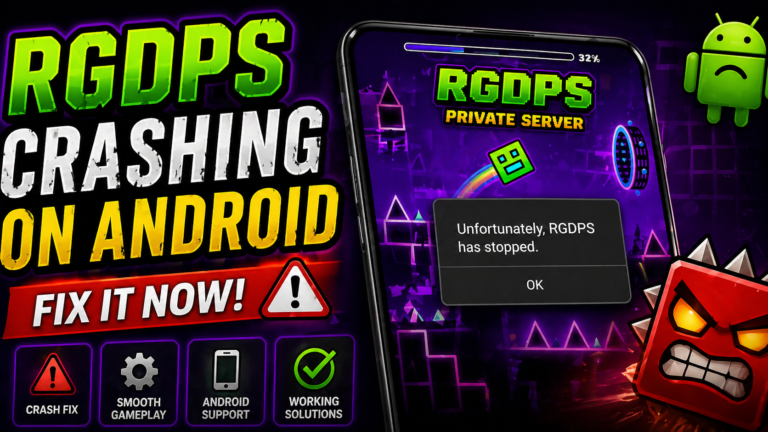
You open RGDPS (Geometry Dash Mobile), find a cool level, tap download… and nothing happens. It just keeps loading or fails again and again. At that moment, it feels like the game is broken, but the reality is much simpler than that.
Most of the time, it’s just a small issue that’s easy to fix once you know what to do, especially in games like RGDPS. In this guide, I’ll show you the exact way to download levels without errors, so you can stop dealing with loading problems and actually enjoy playing new levels without interruption.
How Level Downloads Work in Geometry Dash
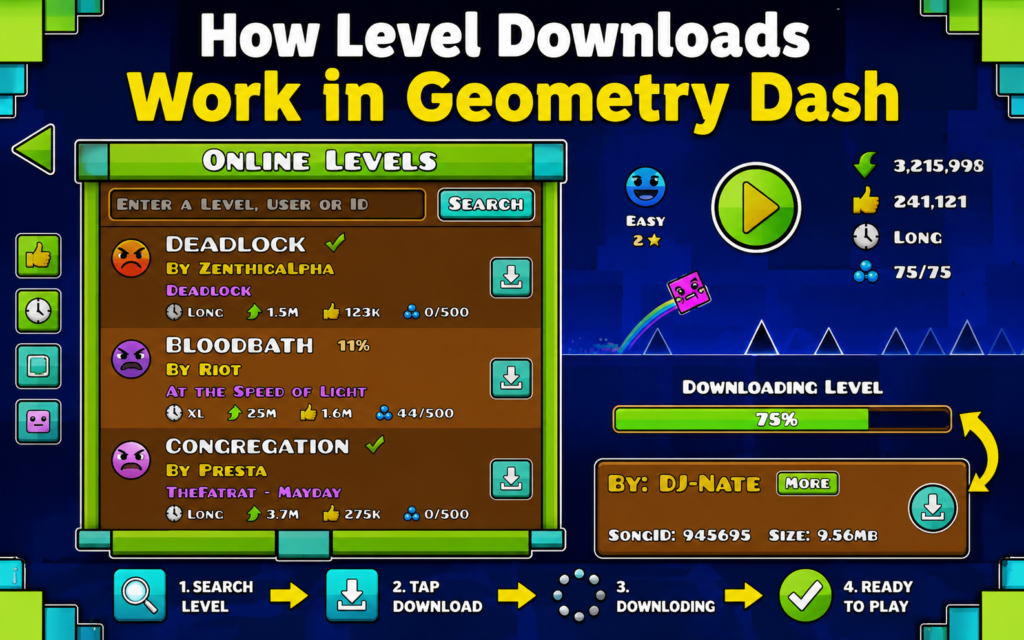
Before jumping into steps, it’s important to understand how the game handles levels. Unlike offline games, Geometry Dash uses an online server system where levels are uploaded by players from around the world.
When you download a level, the game connects to the server, fetches the level data, and stores it temporarily on your device. If anything interrupts this process, such as weak internet or server delay, the level may fail to download.
This is why many players face issues without realizing the real cause.
Step-by-Step Guide: How to Download Levels in Geometry Dash Mobile
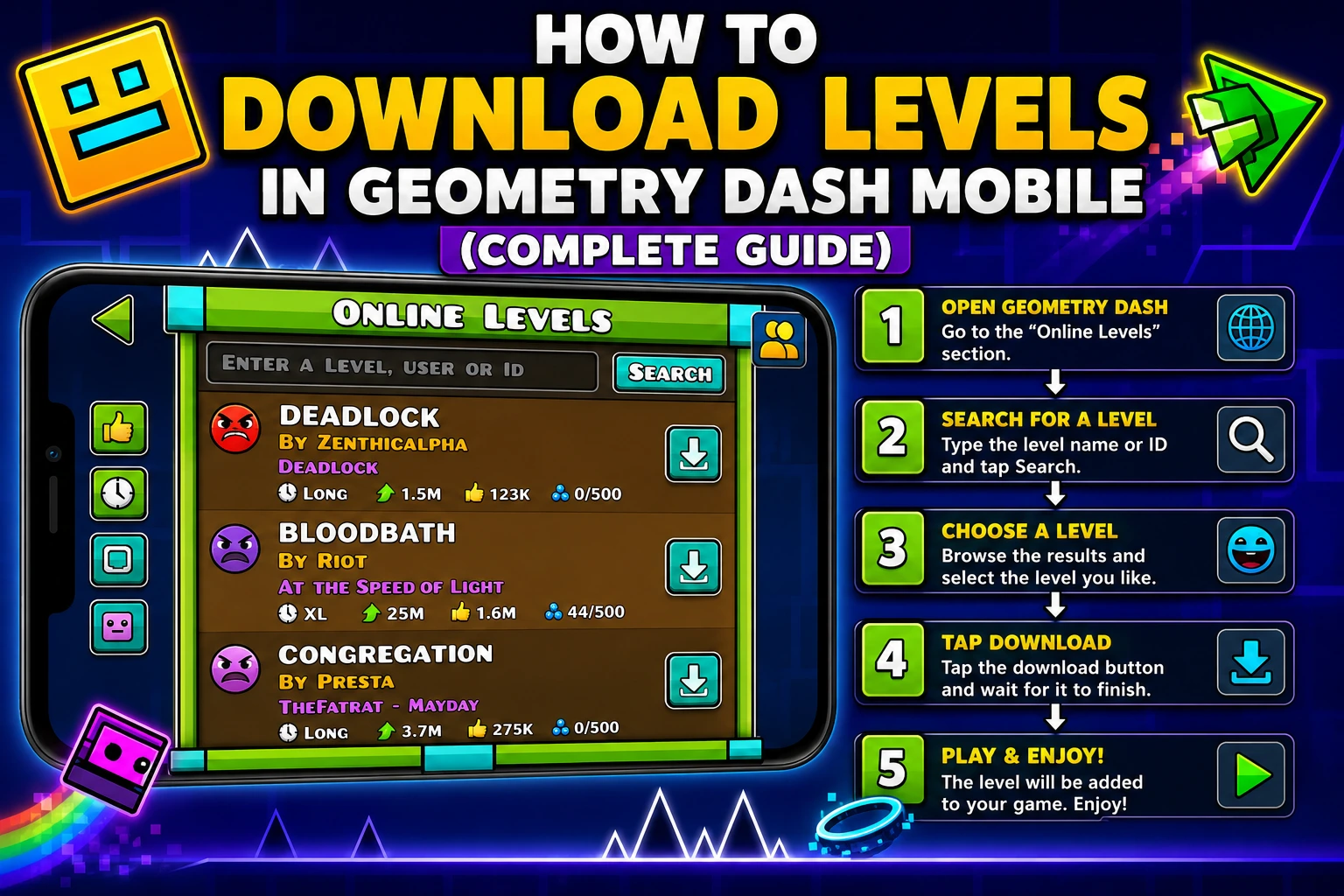
Downloading levels is easy when you follow the correct method. Here’s a simple step-by-step process.
Open the Game and Access Online Levels
Start by launching Geometry Dash on your mobile device. From the main menu, tap on the “Play” button and then select “Online Levels.”
This section contains thousands of user-created levels that you can browse and download instantly.
Search for Levels You Want to Play
Once you enter the online unlock levels section, you can:
If you know the level name or ID, searching directly is the fastest option.
Download the Level
After selecting a level:
Once downloaded, the level will be ready to play immediately.
Play and Save the Level
After downloading, you can play the level anytime. The game temporarily saves downloaded levels, so you don’t need to download them again unless cache is cleared.
Why Levels Sometimes Fail to Download
Many users face issues while downloading levels. Understanding the reasons can help you fix the problem quickly.
Common causes include:
Most of these problems are easy to fix with basic troubleshooting.
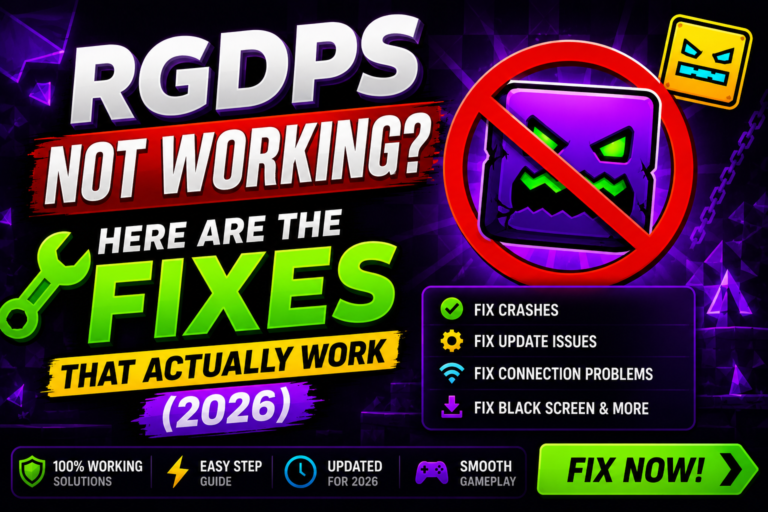
Fix Geometry Dash Level Download Errors
If your levels are not downloading, try these proven solutions.
Check Your Internet Connection
Make sure your connection is stable. Switch between Wi-Fi and mobile data to test which works better.
Restart the Game
Close the game completely and reopen it. This refreshes the connection with the server.
Update the Game to Latest Version
Always use the latest version of Geometry Dash. Updates often fix server and download issues.
Clear Cache for Better Performance
Clearing cache removes temporary bugs that may block downloads.
Go to:
Settings → Apps → Geometry Dash → Storage → Clear Cache
Wait and Try Again
Sometimes the issue is from the server side. Waiting a few minutes and trying again often works.
Best Way to Find High-Quality Levels
Not all levels are worth playing. Some are poorly designed or broken. To find the best levels:
This helps you avoid wasting time on low-quality content.
How to Download Levels Faster
If you want a smoother experience, follow these tips:
These small improvements can make a big difference.
Experience-Based Advice for Better Gameplay
From real user experience, most download issues happen because players rush through the process or ignore basic setup. Taking a few seconds to check internet stability and game version can prevent most problems.
Also, avoid repeatedly tapping download if it fails. This can overload the connection. Instead, wait and retry properly.
Consistency and patience always give better results than random attempts.
Frequently Asked Questions (FAQ)
Conclusion
Downloading levels in Geometry Dash mobile is simple once you understand the process. Most issues come from connection problems or outdated versions rather than the game itself. By following the correct steps and using a stable setup, you can explore thousands of levels without any trouble.
Keep your game updated, maintain a strong connection, and choose quality levels to get the best experience.