RGDPS Not Working? Here Are the Fixes That Actually Work (2026)
You opened RGDPS, and something went wrong. Maybe the game is not loading. Maybe it crashed before you even got to the main menu. Maybe your login is failing or levels are not downloading. Whatever the problem is, you are not alone, and in most cases, the fix takes less than five minutes.
RGDPS stops working and walks you through the exact steps to fix each one. No technical knowledge needed. Just follow the steps and you will be back playing in no time.
Why Is RGDPS Not Working?
Before jumping into fixes, it helps to understand why RGDPS problems happen in the first place.
RGDPS runs on its own independent server, which means it depends on a stable internet connection, properly installed files, and a device that meets the basic requirements. It is available on Android, iOS, and PC and problems can happen on any platform. Most problems come down to one of four things: a connection issue, a corrupted installation, an outdated version, or temporary server maintenance. If you are using RGDPS on PC and facing issues, you can check our dedicated RGDPS PC Download Guide for platform-specific help. Once you know which one is causing your problem, fixing it becomes straightforward.
RGDPS Not Opening
This is one of the most common problems players report. You tap the icon and nothing happens. Or the game flashes on screen for a second and then closes.
Why it happens: The most common causes are corrupted installation files, an outdated version of RGDPS, or a device that does not have enough free storage to run the app properly.
How to fix it:
- Start by restarting your device. This clears temporary memory and fixes many small issues without needing to do anything else.
- If the game still will not open, uninstall RGDPS completely and download the latest version from a trusted source. A fresh installation almost always solves this problem.
- Check your device storage. If your phone is nearly full, apps struggle to open or run properly. Free up at least 500 megabytes of space before trying again.
- Make sure your Android version is 5.0 or higher. Older versions of Android cannot run RGDPS properly.
RGDPS Stuck on Loading Screen
The loading bar fills up, but the game never moves past it. It just sits there and nothing happens.
Why it happens: This is almost always caused by a slow or unstable internet connection, a corrupted cache, or a temporary issue on the RGDPS server side.
How to fix it:
- Wait two to three minutes before closing the app. Sometimes the loading screen takes longer than expected, especially during peak hours when many players are online.
- Check your internet connection. Open a website or video to confirm it is working. If it is slow, switch from mobile data to Wi-Fi or restart your router.
- Clear the app cache. On Android, go to Settings, find Apps, tap RGDPS, then tap Clear Cache. This removes temporary files that may be causing the loading issue.
If nothing works, uninstall and reinstall RGDPS with a fresh download.
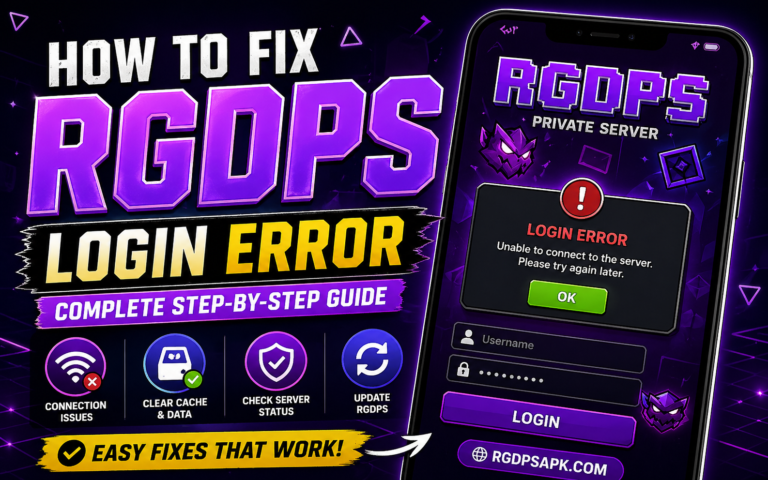
RGDPS Login Not Working
You enter your username and password, and it just fails. Or the login screen freezes and does nothing.
Why it happens: Login problems are usually caused by a wrong username or password, an unstable internet connection, or the RGDPS server being temporarily under maintenance.
How to fix it:
- Double-check your username and password carefully. Even one wrong character will stop you from logging in.
- Test your internet connection. Switch between Wi-Fi and mobile data to see if one works better than the other.
- If your credentials are definitely correct and your internet is working, the RGDPS server may be under maintenance. Wait ten to fifteen minutes and try again.
- If you have forgotten your password, use the password recovery option on the RGDPS login screen.
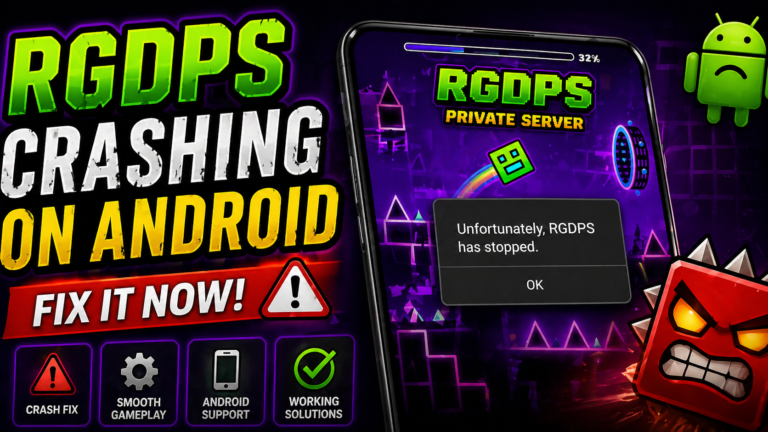
RGDPS Keeps Crashing
The game opens but crashes a few seconds later or crashes while you are in the middle of playing a level.
Why it happens: Crashes are usually caused by low device memory, too many background apps running at the same time, or corrupted game files from an incomplete installation or update.
How to fix it:
- Close all background apps before launching RGDPS. Background apps use RAM and slow down everything else running on your device.
- Restart your device before playing. This frees up memory and gives RGDPS the resources it needs to run without crashing.
- If crashes continue, uninstall RGDPS and reinstall it using a fresh download from a trusted source. Most crash issues are caused by corrupted files that only a clean reinstall can fix.
Make sure your device has at least 200 megabytes of free storage available.
RGDPS Levels Not Downloading
You find a level you want to play, but it will not download. The download starts and then stops, or nothing happens at all.
Why it happens: Level download problems are almost always caused by an unstable internet connection, server congestion during peak hours, or an outdated version of RGDPS that is incompatible with newer levels.
How to fix it:
- Check your internet connection first. A weak signal is the most common cause of failed downloads.
- Update RGDPS to the latest version. Older versions sometimes have trouble downloading newer levels.
- Try downloading a different level. If other levels download fine, the specific level you were trying may have a temporary issue on the server.
- Try again during off-peak hours when fewer players are online and server load is lower.
RGDPS Multiplayer Not Working
You are trying to join a multiplayer session, but it will not connect, or you keep getting kicked out.
Why it happens: Multiplayer connection problems happen because of weak internet, temporary server maintenance, or a firewall or security app on your device blocking the connection.
How to fix it:
- Restart RGDPS and try reconnecting. A simple restart fixes most temporary multiplayer issues.
- Use Wi-Fi instead of mobile data. Multiplayer needs a stable, fast connection, and Wi-Fi is almost always more reliable.
- Check if your antivirus or firewall app is blocking RGDPS. Temporarily disabling it can help you confirm whether this is the cause.
- If multiplayer is down for everyone, it is likely server maintenance. Check community channels for updates and wait for the issue to be resolved.
RGDPS Lagging and Running Slow
The game runs, but everything feels delayed. Timing is off, and levels feel impossible to play properly.
Why it happens: Lag is caused by a slow internet connection, too many apps running in the background, or a device that is overheating or low on memory.
How to fix it:
- Close background apps before playing RGDPS. Streaming apps, social media, and other games all compete for the same memory.
- Use a stable Wi-Fi connection. Mobile data is less consistent and causes more lag, especially during peak hours.
- Let your device cool down if it feels warm. Overheating slows down performance significantly.
- Restart your device before a gaming session to clear memory and give RGDPS a fresh start.
RGDPS Black Screen on Startup
The app opens, but all you see is a black screen. Nothing loads and nothing happens.
Why it happens: A black screen is almost always caused by a corrupted installation or a compatibility issue with your device.
How to fix it:
- Wait thirty seconds before closing the app. Sometimes it just takes longer to initialize.
- Force close the app and reopen it. On Android, press the square button, swipe RGDPS away, then tap the icon again.
- If the black screen keeps happening, uninstall and reinstall RGDPS completely using a fresh download.
RGDPS Progress Not Saving
You played for an hour, logged out, and came back to find your progress is gone.
Why it happens: Progress sync issues happen when the connection drops while the game is saving or when you close the app too quickly after finishing a level.
How to fix it:
- Always make sure you are connected to the internet before logging out. RGDPS saves your progress to the server and needs a connection to do so.
- Wait a few seconds after finishing a level before closing the app. This gives the game time to sync your progress properly.
- Log out and log back in. Missing progress often reappears after a fresh login as the server syncs your data again.
How to Prevent RGDPS Problems in the Future
Most RGDPS problems are avoidable with a few simple habits.
Always keep RGDPS updated. New versions fix bugs, improve stability, and prevent compatibility issues. Since RGDPS is not on the Play Store, you need to check for updates manually and download them from the official source.
- Use a stable Wi-Fi connection whenever possible. A strong connection prevents login failures, loading issues, and multiplayer problems before they start.
- Keep at least 500 megabytes of free storage on your device at all times. A full device causes apps to crash, freeze, and behave unpredictably.
- Restart your device regularly. This clears memory and keeps everything running smoothly.
- Only download RGDPS from trusted, verified sources. Corrupted files from unverified websites cause most of the technical problems players experience.
Conclusion
RGDPS is one of the best Geometry Dash private servers available, and most of the problems players run into are easy to fix once you know what to look for.
Whether your game is not opening, stuck on a loading screen, crashing, or lagging, the solution almost always comes down to three things: a stable internet connection, a clean installation, and enough free storage on your device. Start with a restart, check your connection, and if the problem continues, a fresh reinstall fixes most issues within minutes.